Introduction: The JSON Key Nightmare
For years, the standard way to give an application access to Google Cloud APIs (like Cloud Storage or BigQuery) was simple: generate a Service Account Key (JSON file), download it, mount it as a Kubernetes Secret, and set the GOOGLE_APPLICATION_CREDENTIALS environment variable.
It was simple, but it was dangerous.
Long-lived JSON keys are the #1 vector for cloud compromises. They don't expire, they are easily committed to GitHub by mistake, and rotating them at scale is an operational headache.
The modern solution? Go Keyless.
Google's Workload Identity (for GKE) and Service Identity (for Cloud Run) allow your workloads to masquerade as Google Service Accounts using short-lived, auto-rotated tokens. No JSON files ever touch the disk.
In this guide, we will implement a fully keyless architecture where a GKE Pod and a Cloud Run service authenticate securely to Google Cloud APIs.
The Architecture: Identity Federation
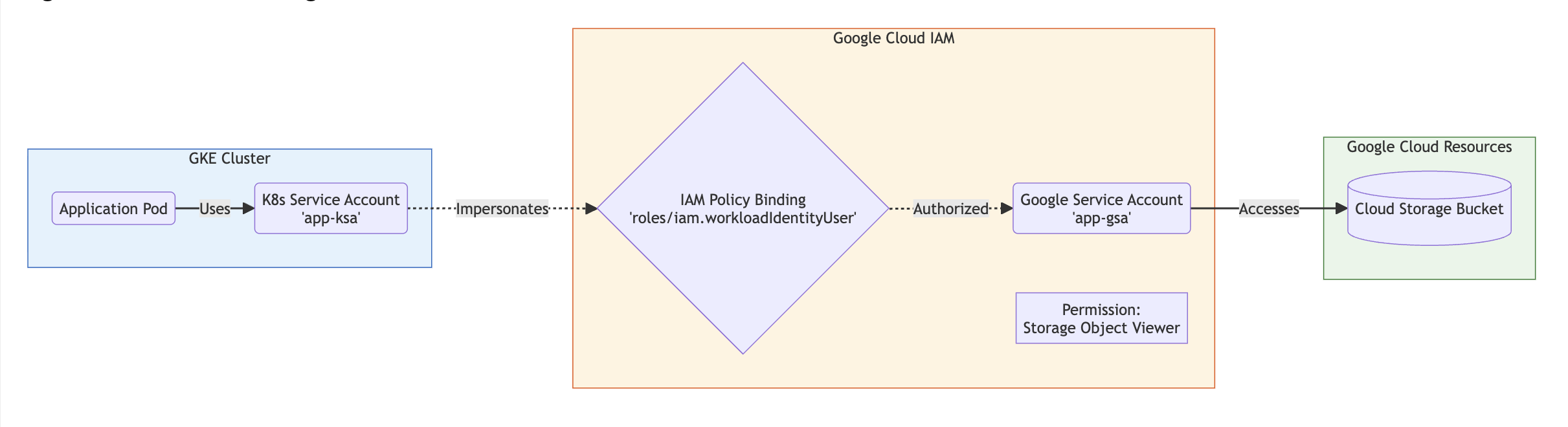
The core concept here is Identity Mapping. We are creating a trust relationship between a logical identity in your infrastructure (a Kubernetes Service Account) and an IAM identity in Google Cloud (a Google Service Account).
Core Components Explained
- Kubernetes Service Account (KSA): The identity the Pod uses inside the cluster.
- Google Service Account (GSA): The identity that has actual IAM permissions (e.g.,
Storage Object Viewer) on Google Cloud resources. - Workload Identity User Role: The "glue." This IAM binding (
roles/iam.workloadIdentityUser) tells Google: "Trust this specific Kubernetes Service Account to act as this Google Service Account." - Metadata Server: The invisible interceptor that swaps the Kubernetes token for a valid Google Cloud Access Token transparently.
Implementation Guide: Step-by-Step
Let's assume we have a cluster my-cluster in my-project. We want a Pod to read a private file from a Cloud Storage bucket gs://my-secret-bucket.
Phase 1: Infrastructure Setup
Step 1: Enable Workload Identity on GKE If you are creating a new cluster, enable it by default. If updating an existing one:
Step 2: Create the Google Service Account (GSA) This is the account that holds the permissions.
Step 3: Grant Permissions to the GSA Give the GSA the right to read the bucket.
Phase 2: The Binding (The "Keyless" Magic)
Step 1: Create the Kubernetes Service Account (KSA) Connect to your cluster and create the KSA in the default namespace.
Step 2: Bind the KSA to the GSA (IAM Policy) This is the most critical security step. We explicitly allow the KSA to impersonate the GSA.
Note the member syntax: serviceAccount:[PROJECT_ID].svc.id.goog[[NAMESPACE]/[KSA_NAME]]
Step 3: Annotate the KSA This tells the GKE Metadata server which GSA this KSA should use.
Phase 3: Verification
Deploy a Pod using the configured KSA.
Test the Access: Exec into the pod and try to list the bucket.
Result: It works! And if you check the pod's environment variables, there is no JSON key. The Google Cloud SDK found the metadata server automatically.
Architectural Analysis
Pros
- Enhanced Security: Elimination of static, long-lived credentials (JSON keys).
- Operational Ease: No need to rotate keys manually. Tokens are short-lived and auto-rotated by Google.
- Auditability: Cloud Audit Logs clearly show which GSA was used and which KSA impersonated it.
Cons
- Setup Complexity: Requires precise IAM bindings and annotations. A typo in the namespace or service account name results in silent auth failures.
- Migration Effort: Legacy applications reading specific paths for JSON files must be refactored to use
Google Default Application Credentialslibraries.
Common Roadblocks & Troubleshooting
1. The "Default Compute Account" Trap If you forget to annotate the KSA or enable Workload Identity on the Node Pool, the Pod might fall back to using the underlying Node's Compute Engine default service account. This usually results in massive over-privilege or unexpected permission denied errors.
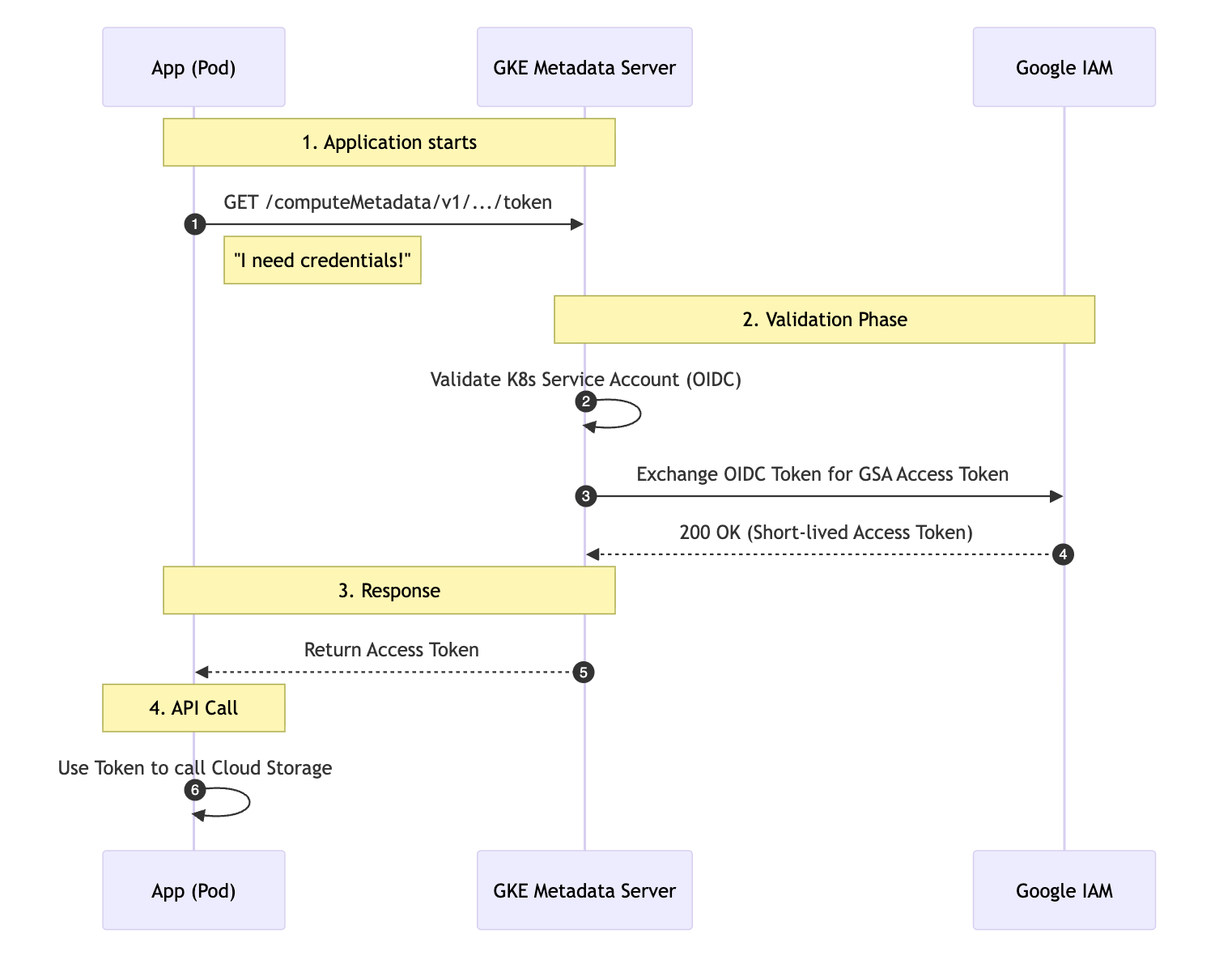
2. The Invisible Handshake (Debugging Auth) When your application code runs, it performs a specific handshake with the metadata server. Understanding this flow is crucial for debugging.
3. Cross-Namespace Confusion
The IAM binding serviceAccount:my-project.svc.id.goog[NAMESPACE/KSA] is strict. If you move your app to a prod namespace, you MUST add a new IAM binding for [prod/app-ksa].
Conclusion
"Keyless" authentication is no longer an advanced feature—it is the baseline standard for secure Google Cloud engineering. By implementing Workload Identity, you close the single largest security gap in cloud applications (stolen keys) and move toward a true Zero Trust infrastructure.
References & Further Reading
- GKE Workload Identity: Enable Workload Identity
- Troubleshooting: Troubleshooting Workload Identity
- Best Practices: Hardening your GKE Cluster